Mac notification sounds
What you can change,
and what nobody can.
“Mac notification sounds” covers three different wishes, and only two of them have an answer. You can change the alert sound macOS plays. You can silence a specific app. You cannot replace the sound a particular app plays with its banners — not with a preference, not with a utility, not with anything.
This page sorts out which is which, and then covers the case nobody talks about: the events your Mac never notifies you about at all. Wi-Fi dropping. The battery reaching full. A drive mounting. Those are silent by design, and that silence is the part Noisy Laptop fixes.
It adds sounds for 26 system events. It doesn't touch Notification Center.
Sort it out
Three wishes, three different answers
Almost every unhelpful search result for this phrase is unhelpful because it answers a different one of these than the one you had. Find your row.
The gap
The things your Mac never tells you about
These aren't notifications and they never will be — Apple isn't going to banner you because a USB stick mounted. But they are real, timestamped events that macOS broadcasts, and hearing them is often more useful than seeing a banner, because you don't have to be looking at the screen.
Wi-Fi dropped
You find out when a page fails to load. A short low tone tells you the moment it happens, while you still remember what you were doing.
Battery at 100%
There's no alert for this. If you unplug at full on purpose, this is the only way to know without watching the menu bar.
Battery low
macOS does warn you, with a dialog you dismiss on autopilot. A sound is harder to dismiss without registering it.
A drive mounted
Especially useful with a hub: you hear whether the SD card actually mounted or the port is flaky.
AirPods connected
They connect when they feel like it. A sound means you stop saying “can you hear me” into a laptop mic.
A call went live
Your camera or mic just went hot. A short “on air” tone is a genuinely good habit to build.
The “something needs you” sound. Classic and Lo-fi keep it gentle; Meme answers with a sad trombone.
Classic and Lo-fi are the two that suit an alert. The other four are here so you can hear what you're choosing between. Classic is free.
The alert-shaped ones
Events that behave most like notifications
If what you wanted from “notification sounds” was “tell me when something needs my attention”, these are the events to switch on first. Each has its own volume, so an alert can sit above a charger sound without turning everything up.
Battery low uses a threshold you set (20% to begin with). The two network events cover losing and regaining connectivity. The call events read whether another app has a camera or microphone running — a yes/no flag, never the audio itself, which is why the app asks for no permissions at all.
The rest of the list — all 26 of them, with their defaults — is on Mac system sounds.
Living with it
How to add sounds without building a slot machine
Turn on four, not twenty
13 events are on when you install it, and that is already more than most people keep. The useful set is usually charger in, charger out, battery low, and one device event.
Use a quiet pack for alerts
Classic and Lo-fi are built for this: short, rounded, nothing above a comfortable brightness. Save Meme and Hype Man for the charger, where a big sound is a joke rather than an interruption.
Let the cooldowns work
Each event has a minimum gap, and device and network events are ignored for a few seconds after your Mac wakes — that burst of reconnections is macOS doing housekeeping, not you plugging things in. You don't configure this; it's just how the app behaves.
Meeting mode is already on
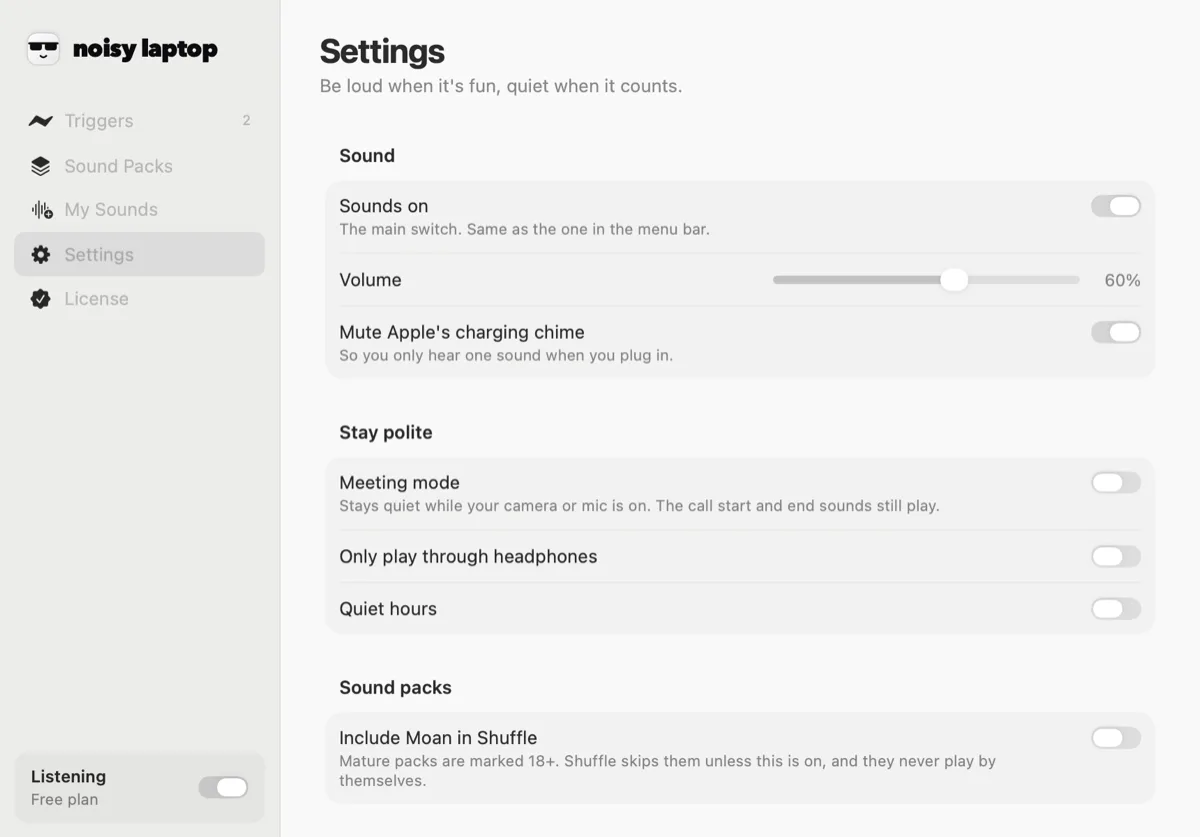
Out of the box, the app goes quiet whenever your camera or microphone is in use, and comes back when the call ends. The call start and end sounds still play, which is the point of them. You never have to remember to mute before a call.
Quiet hours, and headphones only
Settings has an optional quiet-hours window — silent between the times you pick — and a switch that only lets sounds through when headphones are connected. Between those two, the app can be entirely invisible to anyone else in the room.
And mute is one click away
The menu bar has a mute and a pause, for the times the automatic rules don't cover.
Reference
Every event, in full
Notification questions
What people ask
Can it change the sound of macOS notifications?
No — and nothing else can either. Banner and alert sounds belong to macOS and to each app. What Noisy Laptop adds is sound for the hardware and system moments macOS is usually silent about. The honest, longer version is on Mac notification sounds.
What can trigger a sound?
26 Mac events, in six groups: Power, System, Devices, Network, Apps and Calls. Each one can be switched on or off on its own, and each one gets its own sound. The full list is on Mac system sounds.
Does it need Accessibility permission?
No. It never installs an event tap or a global key monitor. It listens to notifications macOS already broadcasts — power source, sleep and wake, screen lock, device connections, network reachability, app launches — and none of those sit behind a permission prompt.
Does it need microphone access?
No. To notice a call, it checks whether another app currently has a camera or microphone running — a yes/no flag the system exposes to any process. It never opens an input stream, never records and never transmits audio. You can also just turn the Calls triggers off.
Will this get annoying?
It's built so it doesn't. Only 13 of the 26 events are on to start with, each has a cooldown, and device and network events are ignored for a few seconds after your Mac wakes — that burst is macOS reconnecting, not you.
There's also a whole Settings section for this. Meeting mode is on out of the box and keeps the app quiet whenever your camera or microphone is in use. Quiet hours silences it between times you set. Only play through headphones does what it says. And the menu bar has a mute and a pause.
Can I use my own sounds?
Yes, with Pro. The app has a My Sounds pane: drop in m4a, mp3, wav, aiff or caf files and they show up in the sound menu for any trigger, alongside the packs. Clips are copied into ~/Library/Application Support/Noisy Laptop/CustomSounds/ and never leave your Mac. More on using your own audio.
Keep going
Related
- Mac system soundsSleep, wake, lock, unlock, drives and displays, with every default listed.
- MacBook charging soundThe one event everyone changes first, and the free part of the app.
- Sound packsTwelve packs to preview, including the two calm ones that suit alerts.
- Your own soundsIf none of the packs has the tone you want, supply the file yourself.
Hear what your Mac keeps to itself.
It won't touch your notifications, and it can't. What it will do is give a voice to the dozen things that happen silently every day.
macOS 14 Sonoma or later · Apple Silicon or Intel · Noisy Laptop Pro is $6.99, once, if you want the rest.